Keep the location, instructions, and reference photos with the assigned task so the crew knows what needs attention.
Stop chasing updates after every site walkthrough
You found the work. Your crew needs clear instructions, and you need to know it was handled. Field Service Cloud connects photo-backed punch lists, crew updates, and manager review so site follow-up does not depend on another call or text.
Use the walkthrough to map this service example to your current crews, records, and review process.
Owners, operations managers, and office managers who need fewer calls, paper packets, and duplicate entries.
A walkthrough should not create another round of chasing
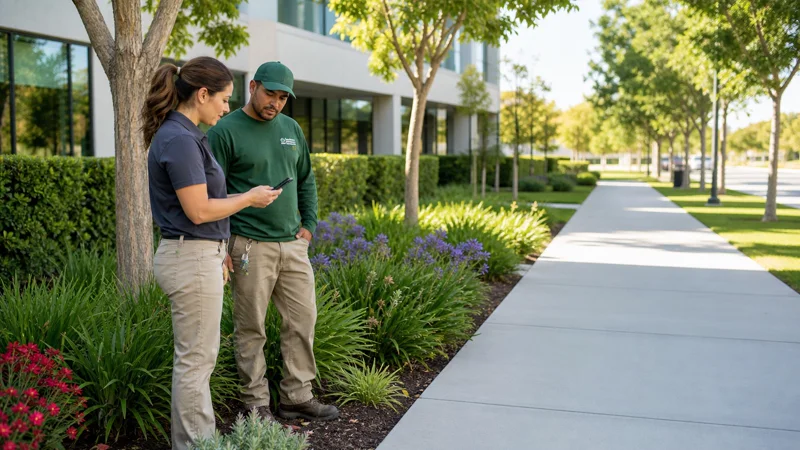
Low branches, overgrown planting, and cleanup details are easy to point out during a walkthrough. The harder part is making sure the right crew understands the work and nothing gets lost between a conversation, a text, and the next visit. Field Service Cloud keeps the instructions, checklist, updates, and photos with the task.
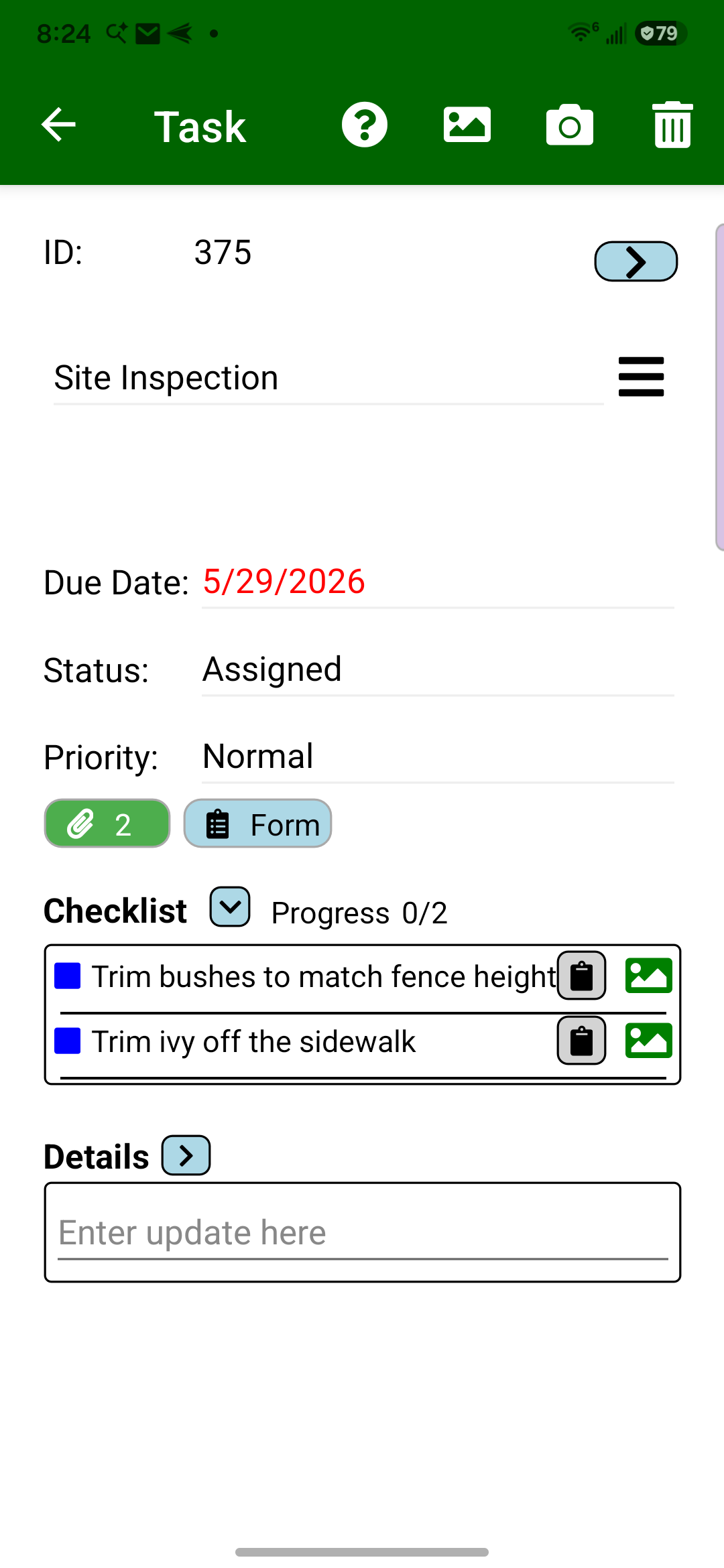
Replace a verbal reminder or scattered texts with specific checklist items and photos the crew can open in Field Assistant.
Review checked items, crew notes, and completion photos in Field Manager. See what was handled and follow up on anything still open.
The result
See the finished result
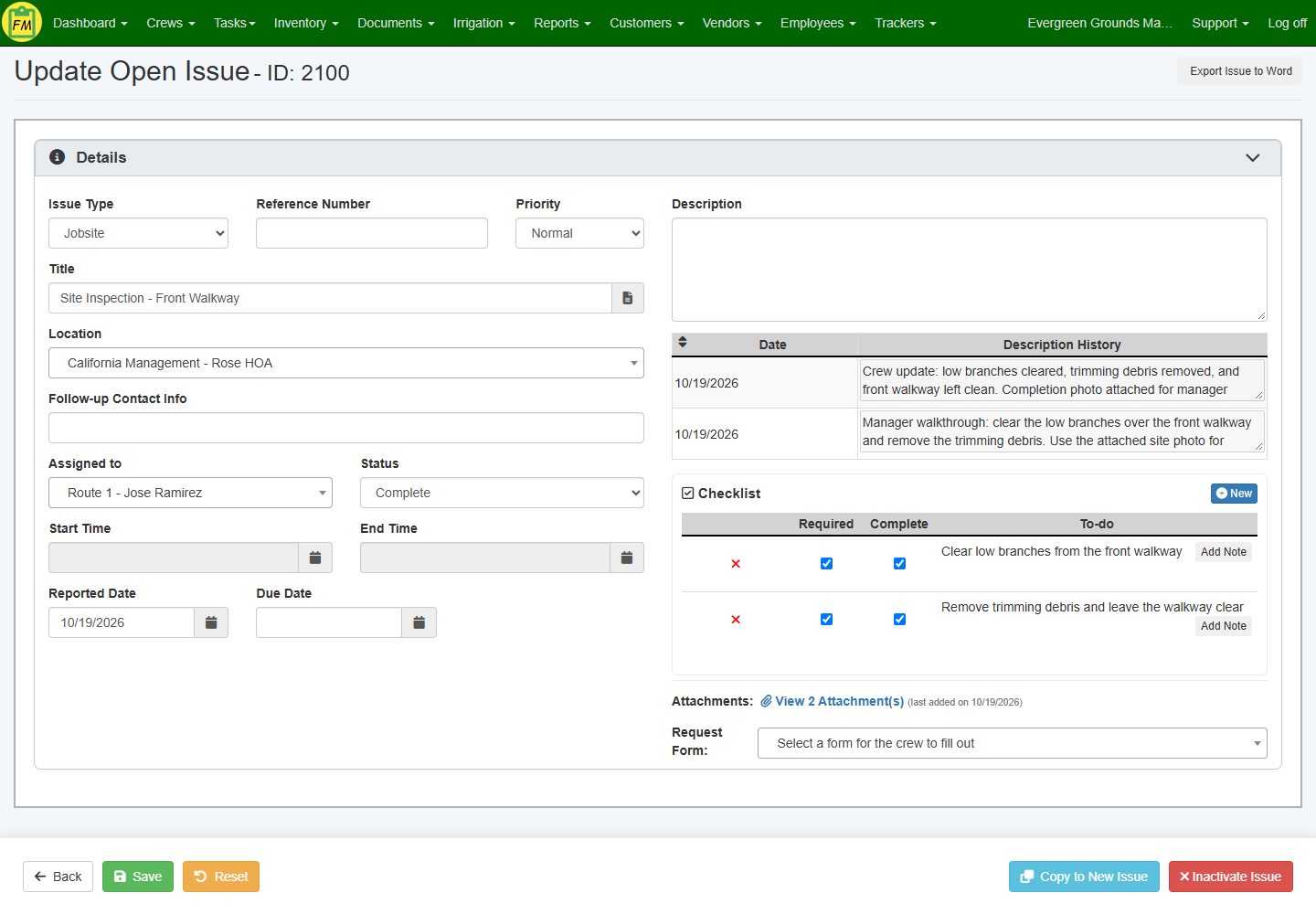
View the completed punch list
Review checked-off work, the crew's update, and attached photos together, so the manager can see what was reported complete and decide whether follow-up is needed.
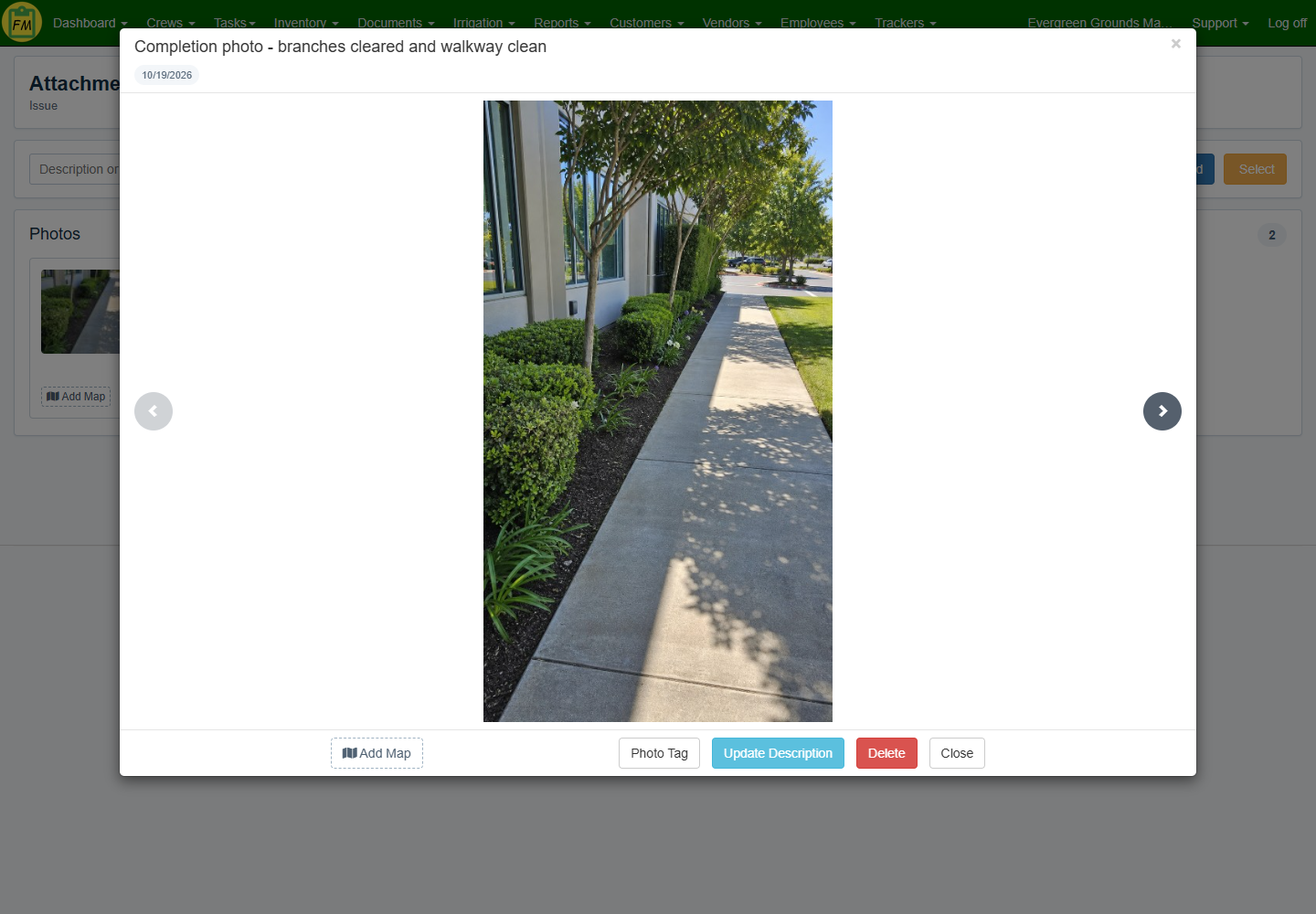
View the completion photo
See the cleared walkway alongside the crew's description, giving the manager visual context for the completion update.
Follow-up examples
Clear directions for the crew. A result the manager can review.
See how Field Service Cloud helps managers explain the work, crews update it from their phones, and managers check the result. The examples show the crew's Field Assistant checklist and an assigned-to-completed walkway task in Field Manager. Customer requests follow in a separate example below.
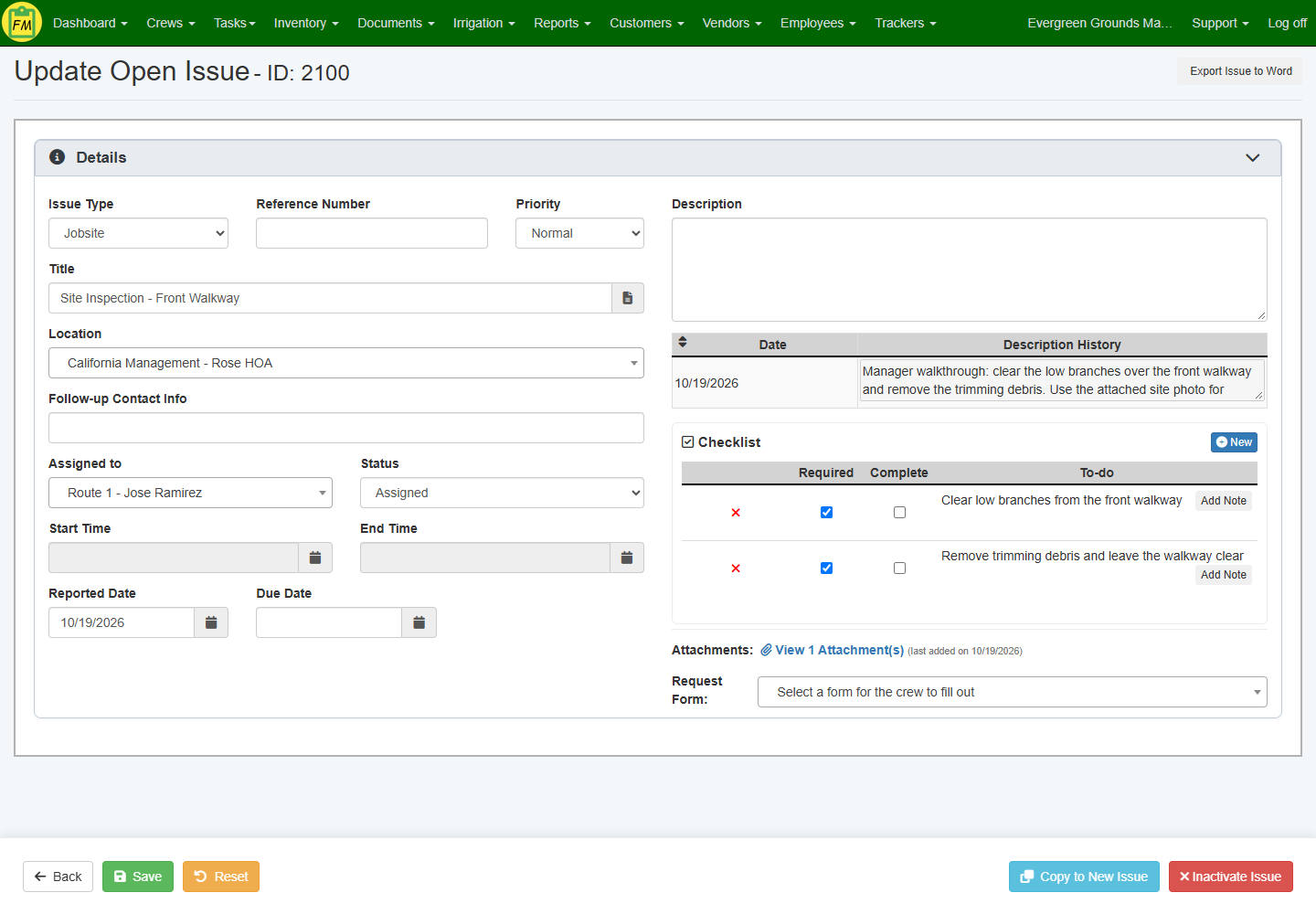
Site inspection: manager walkthrough
1
Manager: Make the work clear before leaving the property
A quick verbal instruction can leave the crew guessing about the location or the finish you expect. Create specific checklist items and attach photos to the task. This walkway example tells the assigned crew to clear low branches and remove the trimming debris.
Clear instructions before the crew starts.
2
Crew: See the punch list and update the work from the phone
The crew should not have to piece together instructions from separate messages. Field Assistant puts the task, checklist, and reference photos on the phone. Crew members check off finished items and add notes and completion photos, giving the manager an update on the work instead of another call to make.
The crew's checklist in Field Assistant.
3
Manager: See what was handled and what still needs attention
A completed status should come with detail you can review. In Field Manager, this walkway task has both items checked, a crew completion note, and two attached photos. Open the completion photo to see the cleared walkway, then follow up on anything unresolved before closing the task.
Completed checklist, crew update, and photo proof together.
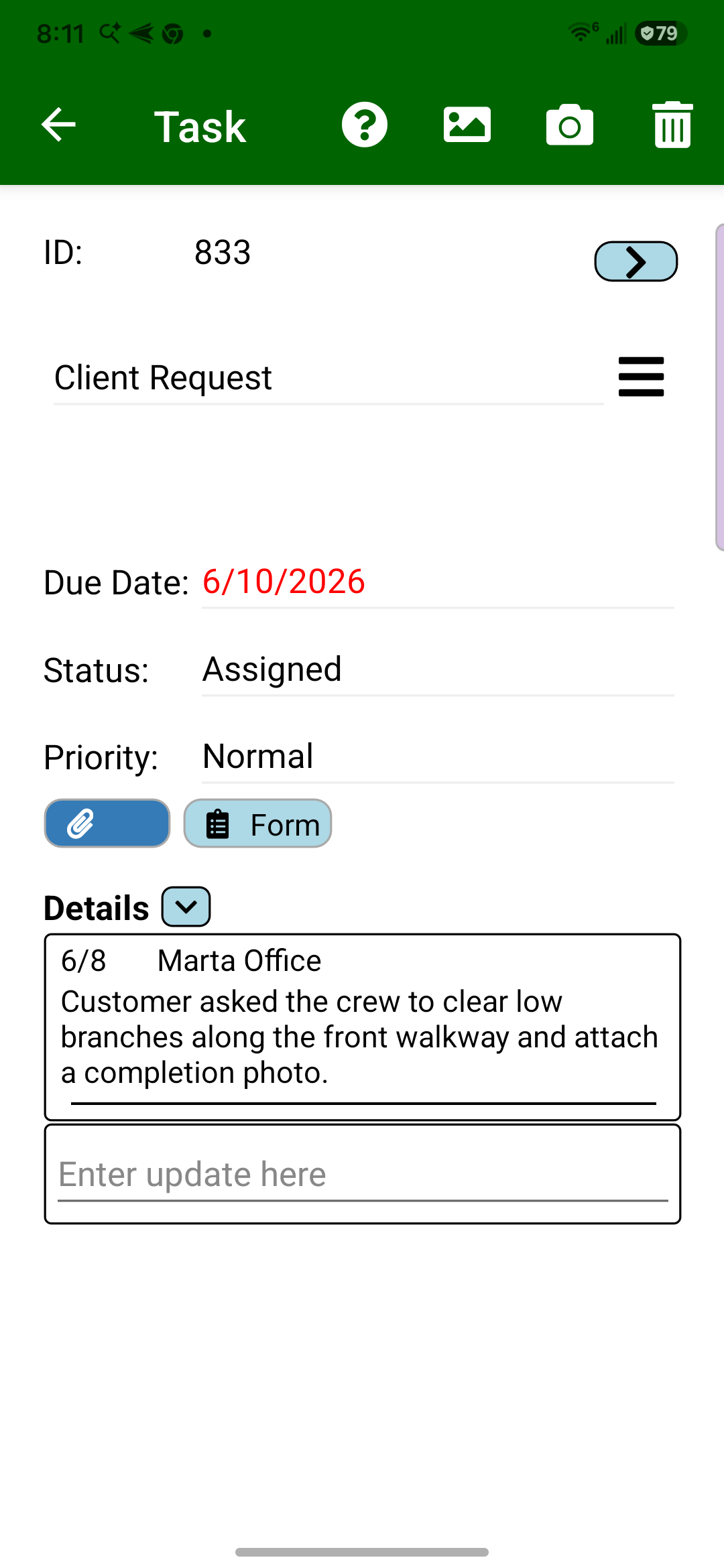
Separate example: customer request follow-up
4
Customer requests reach the crew
After the office captures a request, crews see the customer, jobsite, due date, status, and office note in Field Assistant before they complete the follow-up.
The request reaches the phone.
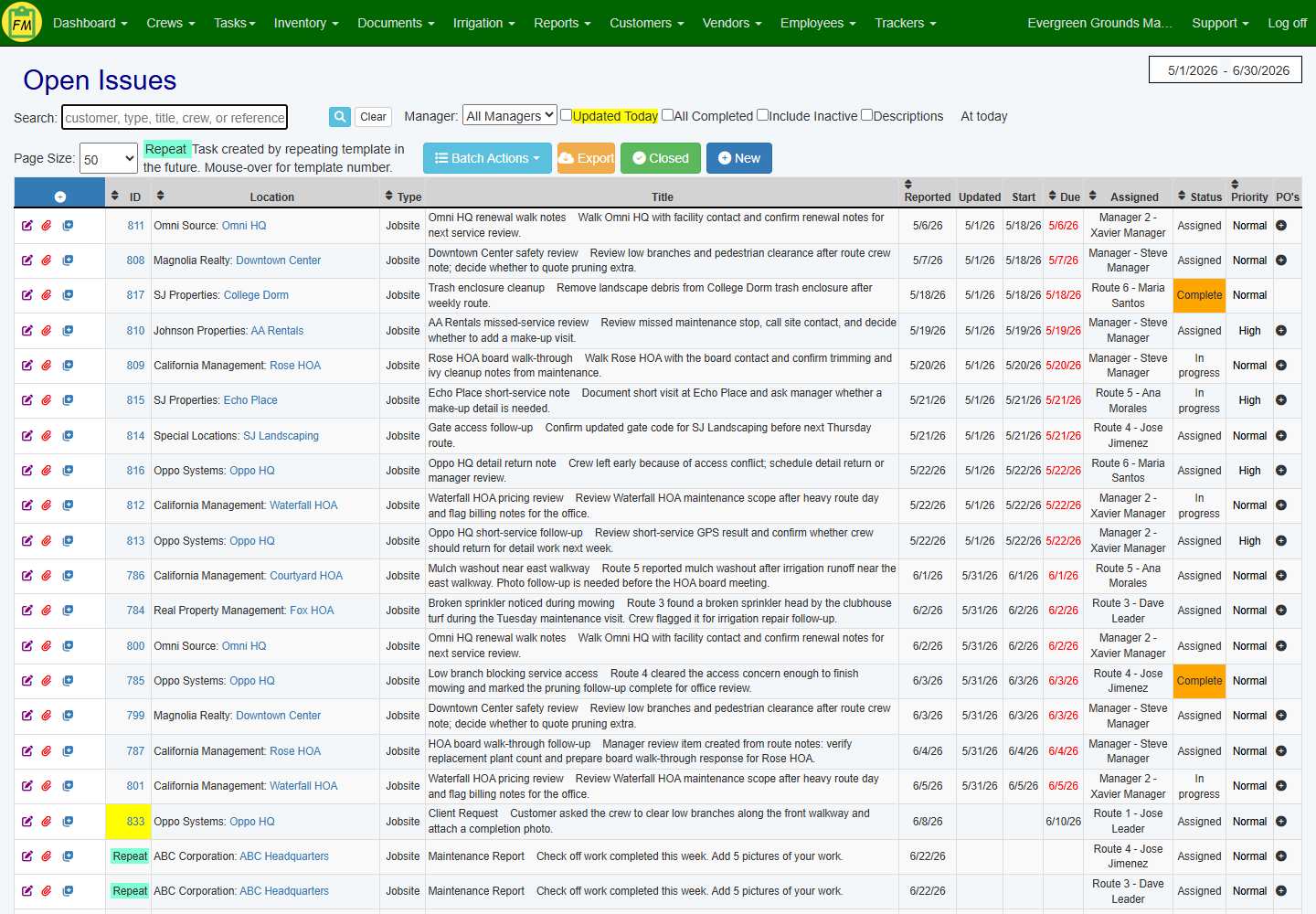
5
Office teams see request follow-up
Task status, assignment, due date, and priority stay visible so account managers and office admins can tell the customer when the request is handled.
Customer follow-up stays visible.